Documentation
Everything you need to set up, configure, and use PrestaTranslator to translate your PrestaShop store with AI.
1Getting Started
PrestaTranslator is an AI-powered translation and SEO enhancement platform for PrestaShop stores. It connects directly to your store via the PrestaShop Webservice API and translates your content into up to 34 languages.
The process is simple:
Install & Connect
Install the PrestaShop module and connect your store to PrestaTranslator.
Select & Translate
Choose the content you want to translate, pick your target languages, and launch.
Publish & Sell
Translations are written back to your store automatically. Start selling internationally.
2Install Module
The PrestaShop module is required to connect your store to PrestaTranslator. It handles API authentication and data exchange securely.
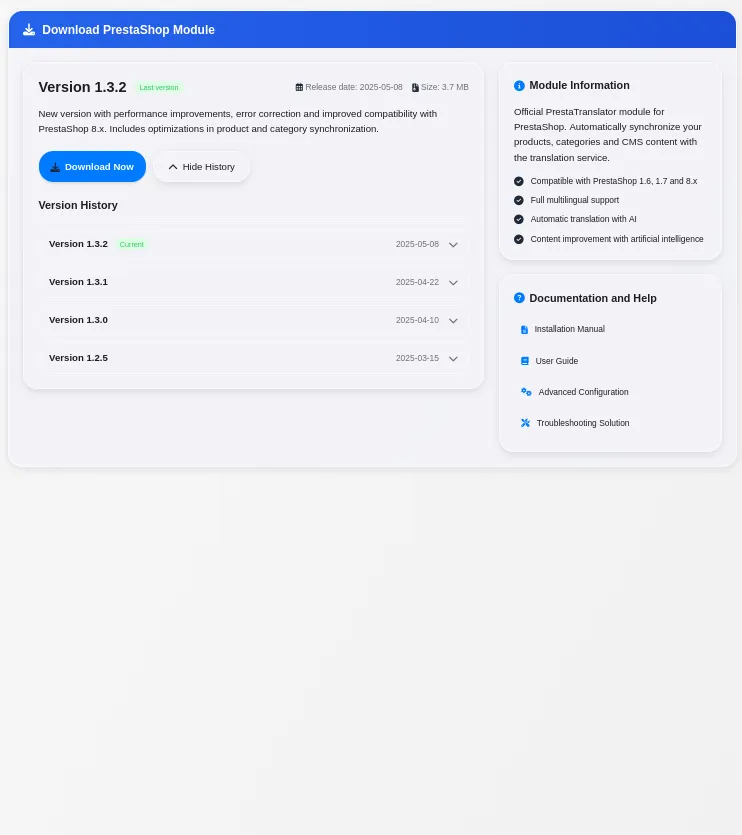
- Download the module from your PrestaTranslator dashboard. Go to Settings > Module and click the download button.
- Upload to PrestaShop — In your PrestaShop Back Office, go to Modules > Module Manager > Upload a module. Select the downloaded .zip file.
- Activate the module — Once uploaded, click Install, then Configure. The module will display an API token that you will use in the next step.
Tip: The module is compatible with PrestaShop 1.7, 8.x, and 9.0.
3Connect Your Store
After installing the module, the setup wizard in PrestaTranslator will guide you through connecting your store.
- Enter your shop URL — Provide the full URL of your PrestaShop store.
- Enter the API token — Copy the API token displayed in the PrestaShop module configuration page and paste it into PrestaTranslator.
- Verify connection — Click 'Test Connection'. PrestaTranslator will verify it can communicate with your store.
- Select source language — Choose the default language of your store.
Important: The API token must have read and write permissions.
4Translate Products
Translating products is the core feature. Here is how to translate your product catalog:
- Navigate to Products — From the dashboard or Translate Hub, select 'Products'.
- Select products — Use filters, specific IDs, or select all products.
- Choose target languages — Select one or more of the 34 supported languages.
- Choose fields — Select which fields to translate: name, description, meta title, meta description, URL, tags, and more.
- Execute — Click 'Translate' to start.
Tip: Use the 'AI SEO Rewriter' to improve descriptions before translating.
5Categories, CMS & More
Categories
Translate category names, descriptions, and meta fields.
CMS Pages
Translate static pages like 'About Us' or 'Shipping Policy'.
Attributes & Features
Translate product attributes. Free, no credits required.
Free Text
Translate any custom text.
The workflow for each content type follows the same pattern.
6Presets
Presets let you save translation configurations to reuse them.
What you can save:
- Content type
- Target languages
- Fields to translate
- Filters
- Translation mode
Dynamic filters
Presets with dynamic filters automatically pick up new matching items.
7Credits & Billing
How credits work
PrestaTranslator uses a credit-based system:
1 credit = 1 item × 1 language
Translating 10 products into 3 languages costs 30 credits.
What costs credits
- Products — 1 credit per product per language.
- Categories — 1 credit per category per language.
- CMS Pages — 1 credit per page per language.
- Attributes & Features — Free.
Buying credits
Purchase credits via PayPal:
- Credit packs — One-time from 75 credits.
- Monthly subscriptions — Discounted recurring plans.
Viewing your balance
Your credit balance is always visible in the navigation bar.
Free trial: Every new account receives 20 free credits. No credit card required.
8Troubleshooting
Solutions to the most common issues:
'Connection failed' during setup
- Check your shop URL includes https://.
- Verify the API token.
- Check your server allows external API requests.
- Ensure the Webservice is enabled.
Translations not appearing
- Verify the target language is installed and active.
- Clear PrestaShop cache.
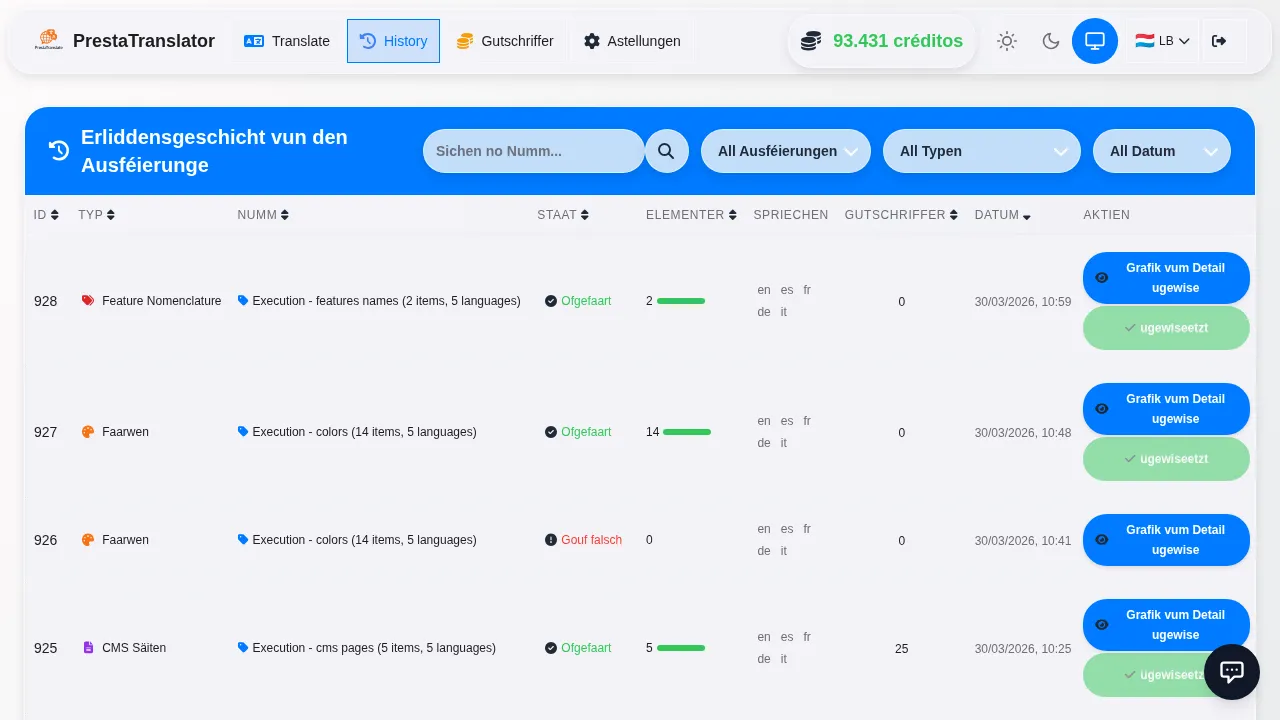
- Check execution history.
Translation quality issues
- Ensure source content is well-written.
- Use the AI SEO Rewriter.
- Review technical terms after translation.
Credits deducted but translation failed
- System retries up to 3 times.
- Credits refunded on failure.
- Check execution history.
- Contact support if it persists.